
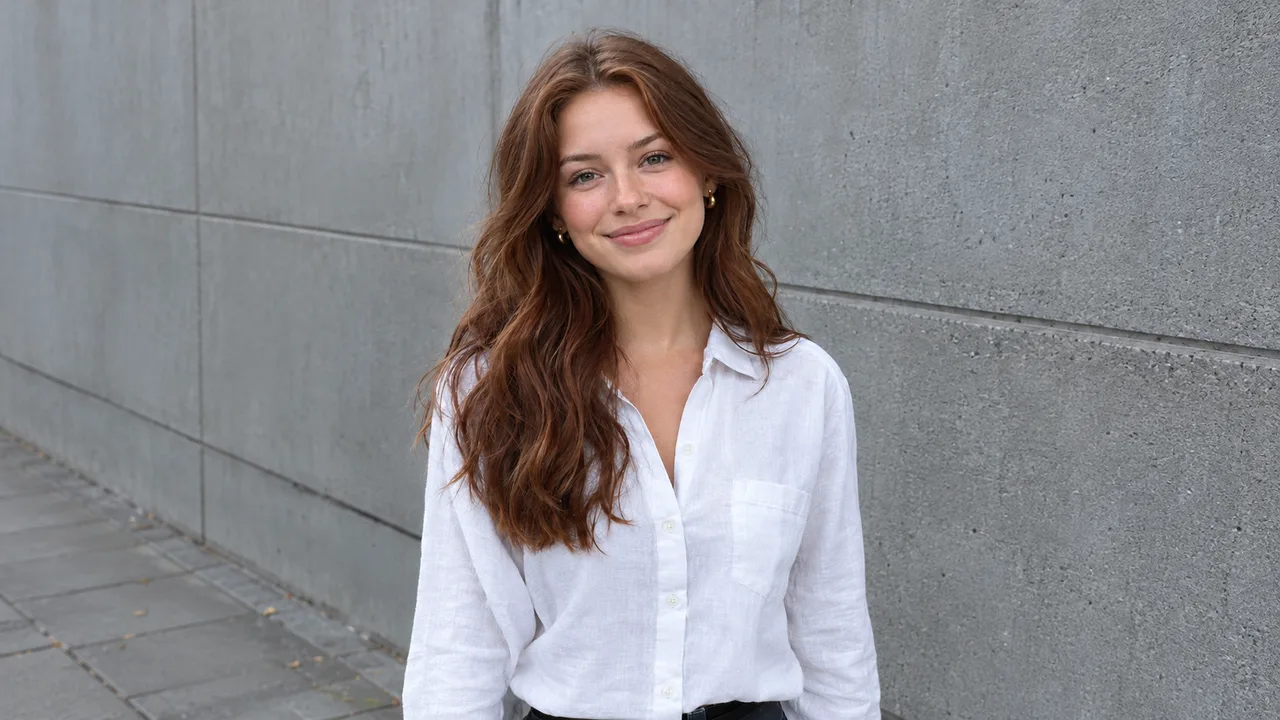
Banners and headers
Turn a vertical photo into a wide website hero, channel banner or slide background without awkward cropping.
Choose a target aspect ratio and the AI extends your picture outward, continuing the background, light and perspective, so a tight crop becomes a wide banner, a tall story or a square post.
Example
ExampleYour result will appear here
How it works
Add the photo or artwork you want to make bigger. A clear, well-lit picture gives the AI the most to work with.
Choose the shape you need, such as 16:9 for a banner or 9:16 for a story. Optionally describe what should appear in the new space.
The AI keeps your original in the middle and fills the new space around it. Check the result, then download it or keep editing in the free online editor.
Change the shape of a picture without cropping away what matters.
New areas continue the existing scene, so the edges blend in instead of looking pasted on.
Go from portrait to landscape, from square to widescreen, or the other way around, by picking a ratio from the list.
The model follows the direction of light, the horizon and the lines already in your photo.
The AI is asked to keep the original picture unchanged in the center while it builds outward.
Add a short note such as more sky, a longer table or extra trees to steer what appears in the new space.
Open the expanded image in the free online editor to add text, crop precisely or combine it with other layers.
Turn a vertical photo into a wide website hero, channel banner or slide background without awkward cropping.
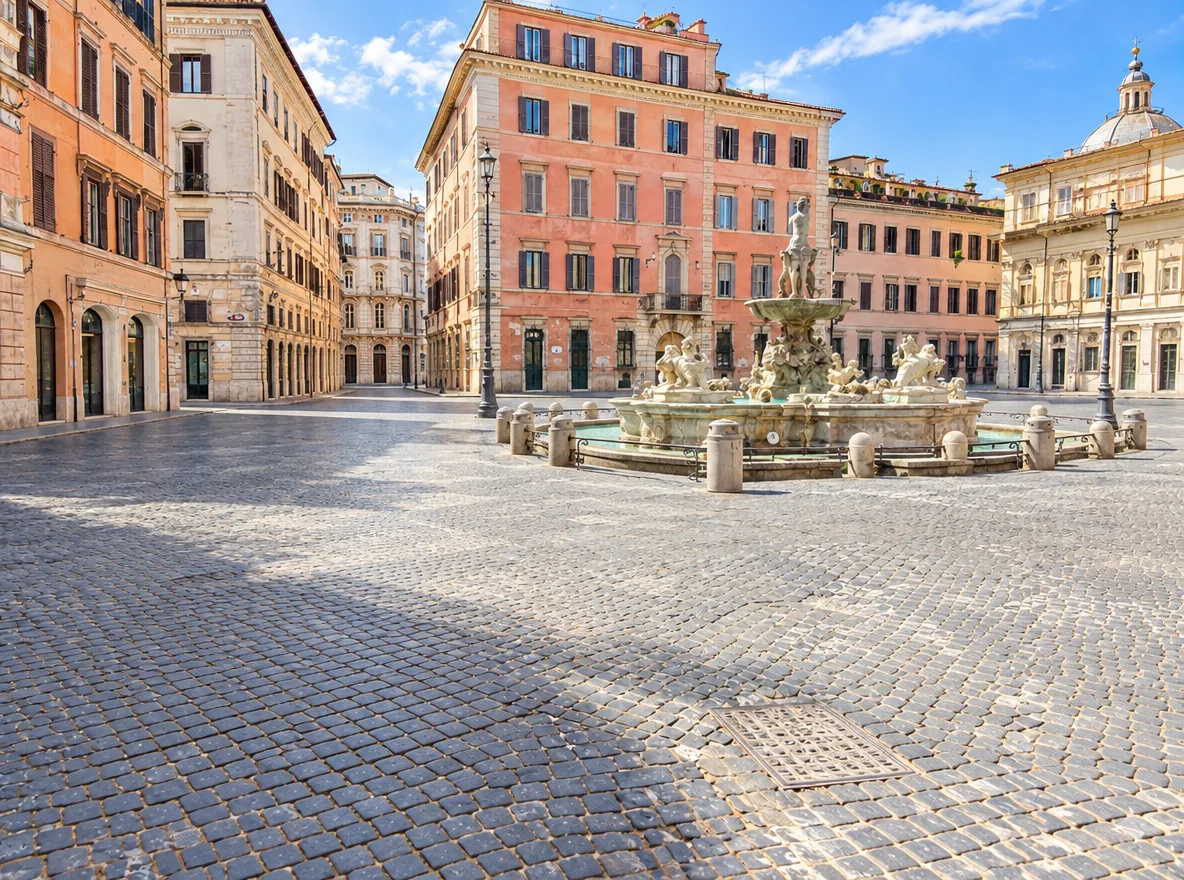
Reuse one picture as a feed post, a story and a cover by expanding it to each platform's shape.
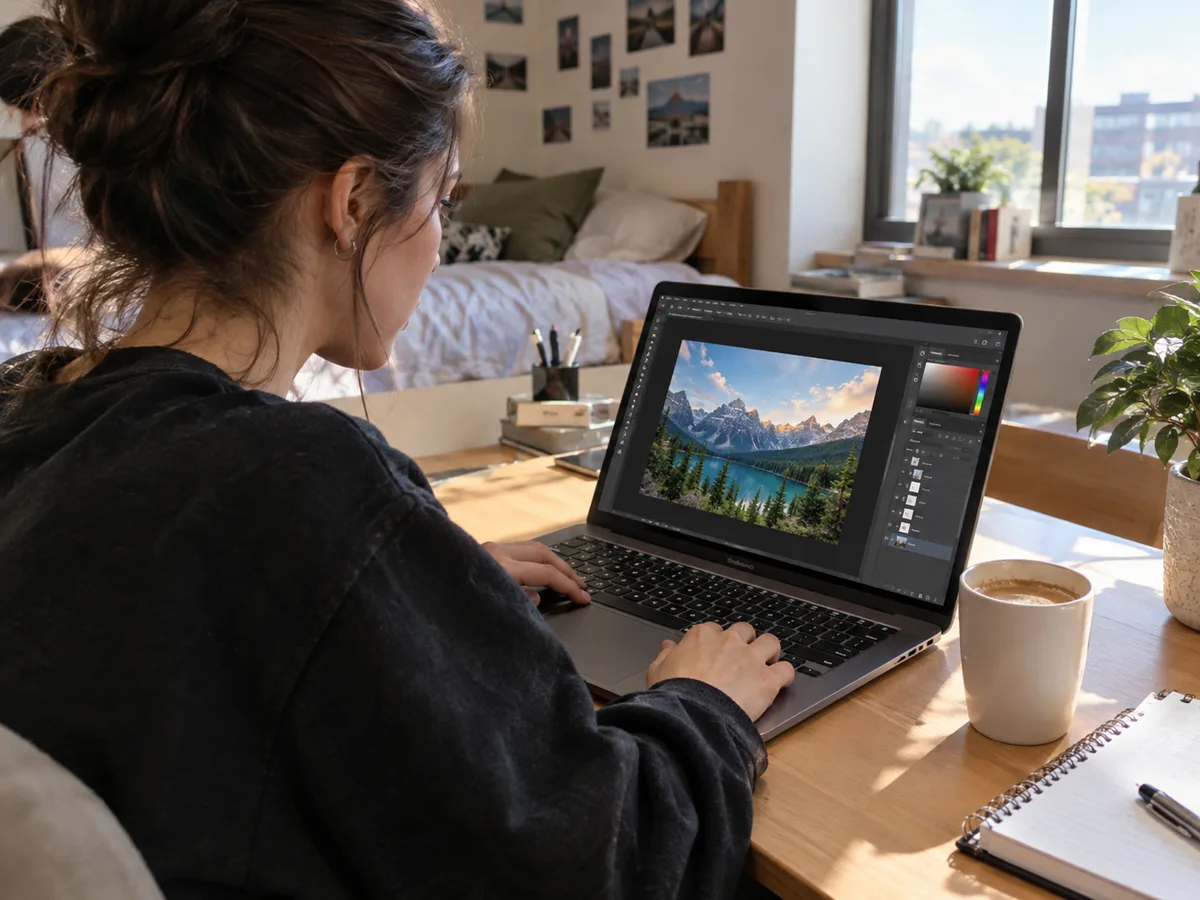
Create calm space around a subject so headlines, prices or captions have somewhere to sit.
FAQ
It makes a picture larger by generating new content beyond its original edges, a technique often called outpainting or uncropping. You choose the new shape and the AI fills the extra space.
The model is instructed to keep the original picture unchanged in the center. Because the whole image is generated again, tiny details can shift, so compare carefully and run it again if needed.
Pick any ratio offered in the tool, from square to widescreen and tall portrait formats. The list in the settings is always the current one.
Yes. Describe it in the optional text box, for example “continue the forest” or “add a clear blue sky”. Keep it short and consistent with the original scene.
Each run uses credits, shown on the generate button before you start; higher resolutions cost more. The online photo editor itself is free.
Your image is uploaded to our storage and processed by our AI model provider to create the result. Results are saved in My Creations so you can download them later.
Keep going with the same photo. Every AI tool shares one credit balance.
Pick a new shape, let the AI extend the scene and download an image that fits where you need it.